
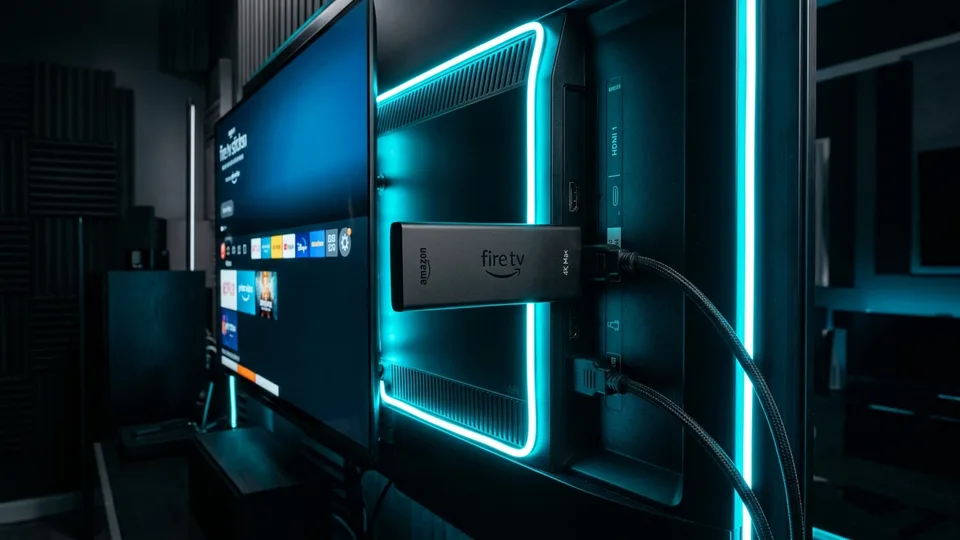
The Amazon Fire TV Stick, particularly the Firestick 4K and Firestick 4K Max, remains the undisputed gold standard for cord-cutters. With hardware-accelerated AV1 and HEVC decoding, an intuitive remote control, and wide app availability, pairing your Firestick with Guru IPTV USA unlocks a true cable-replacement experience featuring 40,000+ live stations and 54,000+ on-demand titles in native 4K.
In this in-depth, step-by-step tutorial, we walk you through the exact setup process from enabling developer options on your Firestick to configuring the acclaimed TiviMate player with your Guru IPTV USA Xtream Codes API credentials.
Step 1: Enable Developer Options on Fire TV
Amazon recently hid the Developer Options menu on newer Fire OS updates. Here is how to unlock it in seconds:
- From the Firestick home screen, navigate to Settings (the gear icon) on the far right.
- Scroll down and select My Fire TV.
- Click on About.
- Highlight your device name (e.g., Fire TV Stick 4K Max) and press the center Select button 7 times consecutively.
- You will see a toast notification at the bottom saying: "No need, you are already a developer."
- Press the Back button once. You will now see Developer Options listed directly below About.
Step 2: Install the Downloader App
To install top-tier IPTV applications that are not directly hosted on the official Amazon Appstore, you will use the verified Downloader utility by AFTVnews:
- Return to your Firestick home screen and click on the Find (Search) icon.
- Type
Downloaderusing the on-screen keyboard or voice remote. - Select the bright orange Downloader app from the results and click Download / Get.
- Once installed, go back to
Settings → My Fire TV → Developer Options → Install unknown apps. - Find Downloader in the list and switch it to ON.
Important Permission Check
When you first launch the Downloader app, Amazon Fire OS will ask for storage permissions: "Allow Downloader to access photos, media, and files on your device?" Select Allow so Downloader can save APK packages to your device cache.
Step 3: Download & Install TiviMate IPTV Player
TiviMate is widely acknowledged as the premier IPTV interface on television screens, offering a lightning-fast Electronic Program Guide (EPG), picture-in-picture, and seamless channel surfing.
- Open the Downloader app.
- Click into the URL address bar, enter the numeric quick code:
278277, and press Go. - The Downloader app will automatically redirect and fetch the official TiviMate APK package.
- Once downloaded, click Install, followed by Done. You can choose to delete the APK file to save internal storage space.
Step 4: Enter Your Guru IPTV USA Xtream Codes Credentials
Upon subscribing to Guru IPTV USA, you receive an automated message containing your server connection details. Here is how to link them:
- Launch TiviMate from your Firestick Apps library.
- Select Add Playlist.
- Choose Xtream Codes (do not choose M3U, as Xtream Codes delivers faster load times and auto-categorization).
- Enter your server connection details:
- Server URL: The secure portal URL provided in your Guru IPTV USA welcome email
- Username: Your assigned account username
- Password: Your encrypted account password
- Check the box that says Include VOD (Movies and TV Series).
- Click Next, then click Done.
Step 5: Optimize Firestick Playback Settings
To guarantee zero buffering and crisp 60 FPS sports playback during peak viewing hours:
- Buffer Size: Navigate to
TiviMate Settings → Playback → Buffer Sizeand change it from None to Large. This prevents micro-stutters during network congestion. - Hardware Acceleration: Ensure Video Decoder is set to Hardware to offload decoding to the Firestick GPU.
- EPG Auto-Update: Go to
EPG → Update on app startand set it to ON so your TV guide schedule is always up-to-date.
Ready to Level Up Your Firestick?
Join thousands of US households streaming in 4K UHD. Get instant activation in under 5 minutes.
View Subscription Plans